


Best 4K Monitor for MacBook Pro 2026
This article contains affiliate links. If you purchase through these links, we may earn a small commission at no extra cost to you.
Most MacBook Pro users come to this search with a very specific problem: they want one cable. One cable that charges the laptop, carries 4K video, and doesn't introduce a nest of adapters on a desk that already costs too much. The second problem is that 4K monitors marketed as "Mac-compatible" range from $370 to $1,539, and the spec sheets don't tell you which ones actually deliver sharp text rendering, correct color out of the box, or enough USB-C Power Delivery to run a MacBook Pro without also plugging in MagSafe.
That's what this guide cuts through.
What to look for (the specs that actually matter)
USB-C Power Delivery — and how much wattage
A MacBook Pro 14-inch (M4) draws up to 96W under sustained load. A MacBook Pro 16-inch pushes that higher. Monitors that advertise "USB-C" but only deliver 60–65W will trickle-charge — or actively drain — your laptop during intensive tasks. Look for 90W PD or above if you're running a Pro. Budget monitors in the sub-$400 tier typically cap at 60W, which is fine for lighter workloads but a real limitation if you're exporting video or running VMs. Check the spec sheet, not the marketing copy.
Panel type: IPS vs. IPS Black vs. OLED
Standard IPS panels — the majority of monitors in this price range — deliver accurate color but mediocre contrast (typically 1000:1). IPS Black panels (Dell's terminology for their higher-contrast IPS variant) push closer to 2000:1, which makes a visible difference in dark scenes and reduces the "washed out" look of standard IPS in dim rooms. OLED at this screen size and price tier is still rare and brings its own burn-in risk for static desktop UI. For most buyers, IPS Black is the practical upgrade worth paying for over standard IPS.
Color accuracy and macOS calibration
The MacBook Pro display is factory-calibrated to P3 wide color. A monitor that can't cover the DCI-P3 gamut adequately will look visually mismatched — colors will appear desaturated relative to the built-in display. Look for ≥95% DCI-P3 coverage and, ideally, a published Delta E ≤2 for factory calibration. Some monitors in this roundup include a factory calibration report; that matters if you're doing photo or video work. If you're just browsing and writing, it matters less — but the macOS color management system will still make a poorly profiled monitor look odd.
Webcam and speaker integration
The MacBook Pro's notch webcam is genuinely mediocre. Built-in monitor webcams are historically worse. The Apple Studio Display is the exception — its 12MP, Center Stage-capable camera is a legitimate selling point for video callers. Every other monitor in this roundup has either a low-grade camera or none at all. If video calls are central to your workday, factor this in; otherwise, ignore it.
Build quality and warranty fine print
Long-term owner reports consistently flag two failure modes: backlight uniformity degradation after 18–24 months, and USB-C hub ports becoming unreliable. Check the warranty: Dell's three-year Advanced Exchange is a concrete differentiator. Apple's one-year limited warranty (extendable with AppleCare) is fine but not exceptional for $1,539. Budget monitors often come with one-year coverage and limited dead-pixel policies. Read the dead-pixel clause — several manufacturers require four or more dead pixels before they'll replace a panel.
The picks
Best Overall — Dell UltraSharp U2723QE
The U2723QE is the monitor this roundup keeps returning to. IPS Black panel, 90W USB-C PD, a built-in USB-C hub with KVM, and Dell's three-year Advanced Exchange warranty. Published expert reviews and long-term owner reports both hold up well at the ~$659 street price.
Best for MacBook Pro users who want a single-cable setup, need a reliable hub for peripherals, and work across color-sensitive tasks like photo editing or design — without crossing into professional colorist territory.
Best Budget — LG 27UK850-W
Older hardware by now, but the LG 27UK850-W still makes the list because it does the fundamentals correctly: 4K IPS panel, 60W USB-C PD (enough for lighter MacBook Pro use), HDR10, and a street price that regularly dips below $370. Owner reviews on Amazon number nearly 3,000, which gives an unusually large sample to assess real-world reliability. The failure patterns reported — occasional HDR tone-mapping quirks, modest stand wobble — are manageable.
Best for MacBook Pro Air or Pro users with lighter workflows who need one cable and a sub-$400 ceiling. Not ideal for a 16-inch Pro running sustained heavy loads — the 60W PD will be inadequate.
Best for Color Work — ASUS ProArt PA279CRV
The ProArt PA279CRV sits at approximately $429 and ships with a factory calibration report. Published reviews consistently point to strong DCI-P3 and sRGB accuracy, 96W USB-C PD (the highest charging output in this price tier), and a design orientation toward content creators rather than gamers. The owner review count is lower than the LG — around 560 — which limits long-term reliability signal.
Best for MacBook Pro users doing photo editing, color grading, or print design who want verifiable factory calibration at a sub-$500 price point and full-wattage charging.
Best for Design Professionals — BenQ PD3225U
At 32 inches and approximately $849, the BenQ PD3225U is the largest and most expensive non-Apple monitor in this list. BenQ's PD line has a long track record with creative professionals. Published expert reviews flag strong color uniformity and the inclusion of a built-in KVM switch. At 72 reviews, the owner feedback base is thin — treat long-term durability as less confirmed than the Dell or LG.
Best for designers and video editors who need real estate and have grown out of 27-inch panels — and who want macOS-optimized color without paying Apple's full premium.
Best for Apple Ecosystem — Apple Studio Display
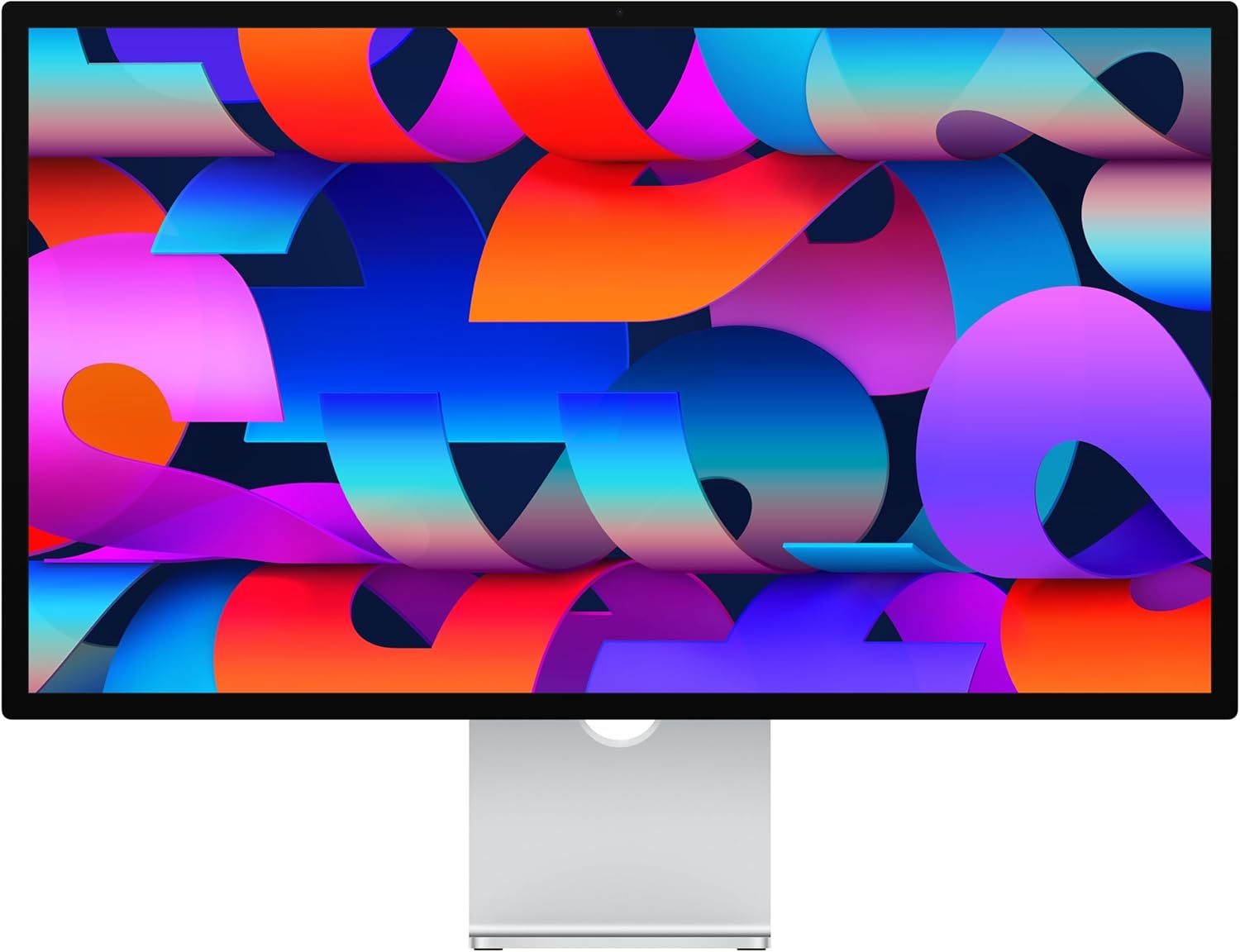
$1,539. That number either ends the conversation or it doesn't. The Apple Studio Display delivers a 27-inch, 5K Retina panel (not 4K — this matters), a 12MP Center Stage webcam, a six-speaker spatial audio system, and USB-C Thunderbolt 3 connectivity designed natively for macOS. Based on published reviews and owner reports, the display quality is unimpeachable and the macOS integration — including automatic color profile handoff and System Preferences brightness control — is genuinely seamless in a way no third-party monitor matches.
Best for MacBook Pro users who are deeply embedded in the Apple ecosystem, regularly take video calls, care about audio quality, and can justify paying a significant premium for the tightest possible hardware-software integration.
Side-by-side comparison
| Monitor | Size | Panel | USB-C PD | Coverage (DCI-P3) | Typical Price | PD per Dollar (W/$) | Best for |
|---|---|---|---|---|---|---|---|
| Dell UltraSharp U2723QE | 27" | IPS Black | 90W | ≥98% | ~$659 | 0.137 | All-around Mac setup |
| LG 27UK850-W | 27" | IPS | 60W | ~95% | ~$370 | 0.162 | Budget one-cable setup |
| ASUS ProArt PA279CRV | 27" | IPS | 96W | ≥99% | ~$429 | 0.224 | Color-accurate work |
| BenQ PD3225U | 32" | IPS | 96W | ≥95% | ~$849 | 0.113 | Design / large canvas |
| Apple Studio Display | 27" | IPS (5K) | 96W | P3 | ~$1,539 | 0.062 | Apple ecosystem all-in |
PD per Dollar = USB-C Power Delivery wattage ÷ typical price. Higher means more charging output per dollar spent — a useful cross-product metric for MacBook Pro buyers for whom single-cable charging is a primary requirement. The ASUS ProArt PA279CRV's 96W PD at ~$429 makes it the most charging-efficient buy in the group; the Apple Studio Display scores lowest on this metric by a wide margin, which makes sense — you're paying for 5K, the camera, and the ecosystem, not just the wattage.
Which one is for you
Pick the Dell UltraSharp U2723QE if you want the best balance of panel quality, charging wattage, hub reliability, and warranty coverage under $700 — this is the default recommendation for most MacBook Pro users.
Pick the LG 27UK850-W if your MacBook Pro is a 14-inch M3 or earlier with moderate workloads and your ceiling is $400 — the 60W PD is sufficient, and nearly 3,000 owner reviews give real confidence in reliability.
Pick the ASUS ProArt PA279CRV if color accuracy is your job (photo editing, design, prepress) and you want a factory calibration report plus 96W charging under $450 — it's the sharpest value in the color-work tier.
Pick the BenQ PD3225U if you've already outgrown 27 inches, work in video production or architecture, and want a proven creative-pro panel short of Apple's price.
Pick the Apple Studio Display if you're on a 16-inch MacBook Pro M3 or later, live in video calls, use AirPlay regularly, and want the experience to feel like one coherent Apple product — not an assembly of components.
Skip this category entirely if your MacBook Pro is M1 or M2 and your workflow is genuinely single-window — the built-in display is excellent and a second screen may just be noise.
FAQ
Does the Apple Studio Display make sense if I'm not a professional? Rarely. The 5K panel and Center Stage webcam are genuinely excellent, but $1,539 is hard to justify unless video calls and ecosystem integration are core to your daily work. Most buyers are better served by the Dell U2723QE at less than half the price.
Will a 60W USB-C monitor drain my MacBook Pro 16-inch? Under sustained load — video export, Lightroom culling, parallel compilation — yes. 60W will not keep up with a MacBook Pro 16-inch drawing 90W+. You'll either need to also plug in MagSafe or accept that the battery drains slowly during peak tasks. The ASUS, Dell, and BenQ all deliver 96W, which is the safer spec for a 16-inch.
Do any of these monitors require drivers or special software on macOS? No dedicated drivers are needed for any monitor in this list. macOS will detect them via USB-C/Thunderbolt and apply the appropriate ICC profile automatically. Some monitors (ASUS, BenQ) include optional calibration software; it's never required. The Apple Studio Display integrates the deepest with System Preferences for brightness and True Tone control.
Is 5K actually better than 4K on a 27-inch display for Mac? At 27 inches, 5K (5120×2880) renders macOS at native 2× ("Retina") scaling with more screen real estate than 4K does at the same size. Most independent reviews describe 5K text sharpness as meaningfully better than 4K at normal viewing distances. Whether it's worth the price difference between the Studio Display and everything else in this list is a different question entirely.
How we chose
Nine 4K monitors with meaningful MacBook Pro compatibility were evaluated before narrowing to five. Sources included published expert reviews from established tech outlets covering monitors, long-term owner feedback on Reddit (r/macsetups, r/homeoffice, r/buildapc), Amazon one-star reviews filtered for structural complaints (dead pixels, USB-C hub failure, backlight uniformity), and manufacturer specification sheets cross-referenced against Apple's Thunderbolt and USB-C Power Delivery documentation. Dominant selection criteria were USB-C PD wattage (minimum 60W, preference for 90W+), factory color accuracy relative to DCI-P3, macOS compatibility without adapter chains, and warranty terms — specifically dead-pixel policy and exchange logistics. Monitors eliminated from the longlist failed primarily on inadequate PD wattage, poor long-term owner reliability signals, or color accuracy claims unsupported by independent measurement.
Bottom line
For the majority of MacBook Pro users, the Dell UltraSharp U2723QE ($659) is the answer: IPS Black panel, 90W USB-C PD, solid USB hub, and a three-year warranty that's actually usable. If the budget is tight, the LG 27UK850-W ($370) does the fundamentals competently with a large owner sample to back its reliability. Color-focused professionals who don't want to pay for the Apple name should look hard at the ASUS ProArt PA279CRV (~$429) — 96W charging and a factory cal report at that price is a genuine value. The BenQ PD3225U earns its place for users who need 32 inches and a professional-grade panel. The Apple Studio Display is only the right answer when macOS integration and the webcam genuinely matter — and you've already processed the $1,539 price tag without flinching. For more context on building a complete home office setup around your MacBook Pro, see our guide on ergonomic workstation setup.