



Best USB-C Docking Stations for Home Office 2026
This article contains affiliate links. If you purchase through these links, we may earn a small commission at no extra cost to you.
One cable. That's the promise. Sit down, plug in one USB-C cable, and your monitor, keyboard, mouse, external drive, ethernet, and webcam all come alive simultaneously. In practice, buyers learn that not all "USB-C docks" honor that promise equally — some throttle charging, some can't drive dual monitors, some run hot enough to reduce their own lifespan, and some simply stop working eighteen months in when a firmware update conflicts with a new laptop. The spec sheets won't tell you which is which. That's what this page is for.
What to look for (the specs that actually matter)
1. Thunderbolt 4 vs. USB4 vs. plain USB-C — know the difference before you buy
Marketing copy uses "USB-C" as if it's one thing. It is not. A plain USB-C dock may top out at 5 Gbps data and 65 W host charging. A USB4 dock can reach 40 Gbps. A Thunderbolt 4 dock certifies 40 Gbps, mandates 100 W host charging, and guarantees dual 4K display support. If you're connecting a MacBook Pro, ThinkPad X1, or any laptop from the last two years with a Thunderbolt port, you can use any of these — but only TB4 ensures you get the full bandwidth contract. Owner reports consistently show disappointment when buyers purchase USB-A-heavy hubs branded as "docking stations" and wonder why their dual monitors stutter.
2. Host charging wattage — will it actually charge your laptop?
Look for the upstream charging spec, not just "100 W Power Delivery." A 96 W or 98 W host charge spec on paper often delivers 85–90 W to the laptop after the dock's internal overhead, which is enough for most 13–15" machines but borderline for 16" MacBook Pros under load. Owner reports on Reddit are littered with "my battery drains while docked" complaints that trace back to exactly this.
3. Port count vs. port utility — don't count the USB-A slots
A dock advertising "12 ports" may be padding the count with three USB-A 2.0 slots that top out at 480 Mbps — fine for a mouse, useless for a drive. What matters: how many USB-A 3.2 Gen 2 (10 Gbps) slots? How many USB-C/TB4 downstream ports? Is there a front-facing SD card slot and a headphone jack you can actually reach? Count the useful ports.
4. Display output — how many monitors, at what resolution and refresh?
Thunderbolt 4 docks can typically drive two 4K/60 Hz displays from a single TB4 host. But the downstream display ports matter: DisplayPort 1.4 handles 4K/144 Hz; HDMI 2.0 maxes at 4K/60 Hz. If you're running a 144 Hz gaming monitor alongside a 4K productivity display, check whether the dock's output ports actually support that combination — the spec sheet buries this, and many owners find it out the hard way.
5. Build quality and heat — the slow-failure problem
Docks run 24/7. Owner one-star reviews disproportionately cite units that die 14–20 months in — conveniently just past a one-year warranty. Look for manufacturers with multi-year warranties and a history of firmware support. Aluminum enclosures dissipate heat better than plastic ones, which matters for a device sitting on your desk all day.
The picks
Best Overall — CalDigit TS4 Thunderbolt 4 Dock
The most port-dense TB4 dock in this price tier — 18 ports on a single host connection — and the one with the longest consistent track record in owner reports.
Best for power users running dual monitors, multiple external drives, and a full desk peripherals stack from one MacBook Pro or Windows Ultrabook. If you're spending eight hours a day at a serious workstation, the TS4's port count justifies the price premium.
Best Budget — UGREEN Revodok Pro 210 Docking Station
Under forty dollars. Ten ports. USB-C host with up to 100 W pass-through charging. It doesn't do Thunderbolt, but for USB4 or plain USB-C hosts that don't need 40 Gbps bandwidth, the Revodok Pro 210 handles the everyday single-monitor home office setup without complaint.
Best for anyone on a budget laptop — Chromebook, mid-range Windows machine, or an older MacBook Air — who needs to declutter desk cables without spending more on the dock than on some of the peripherals it's connecting.
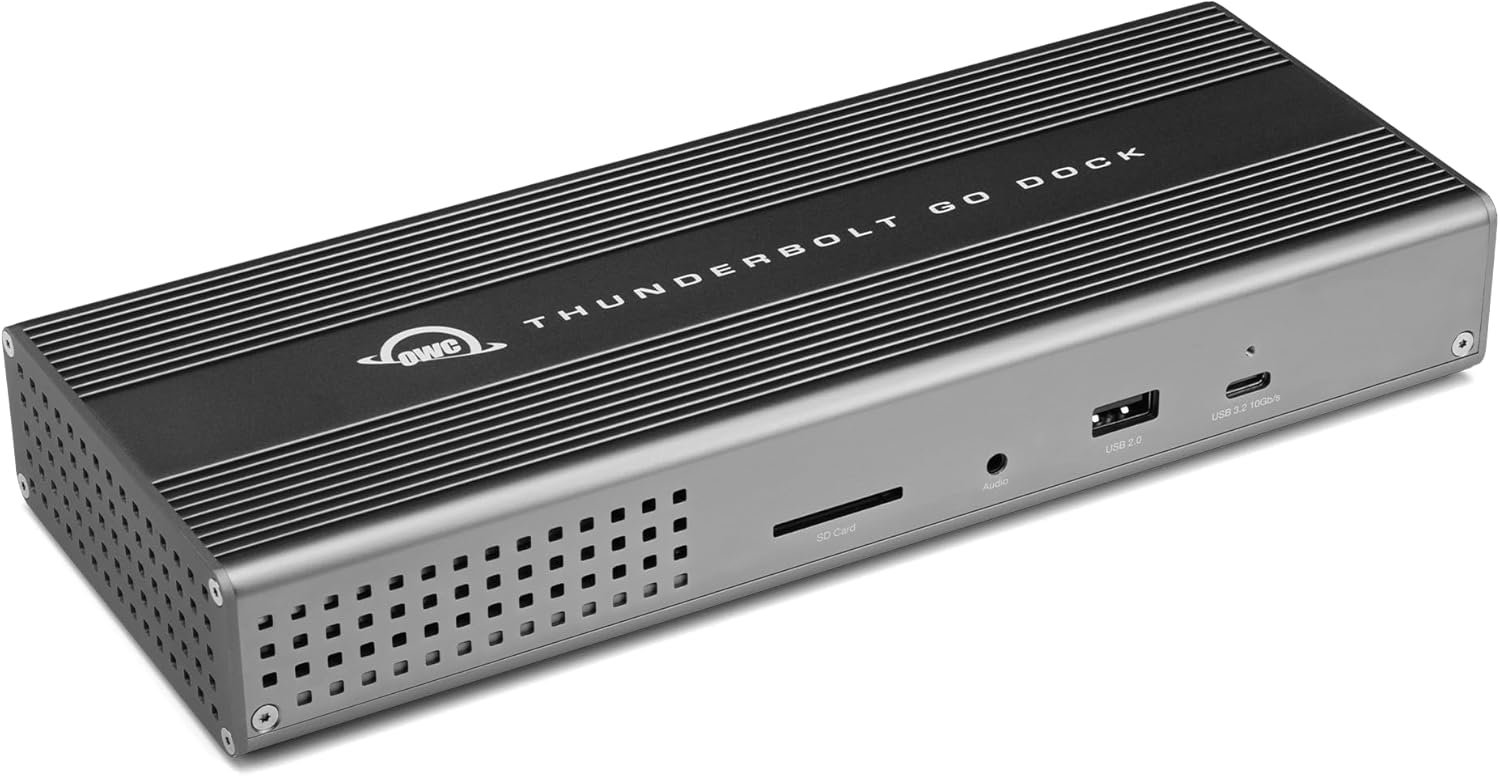
Best for Portability — OWC Thunderbolt Go Dock
The "Go" naming is literal: this is a compact TB4 dock designed to leave the desk and come back. Published reviews note it as one of the few Thunderbolt docks that functions without a separate power brick when used in a lower-power travel configuration, while still operating as a full desk dock when plugged in at home.
Best for remote workers who split time between a home office and client sites or co-working spaces, and want one dock that handles both environments rather than buying two different solutions.
Mid-Range TB4 — Kensington SD5700T Thunderbolt 4 Docking Station
Kensington's enterprise-leaning design shows up here: cable management is tidier than most, and the unit targets IT-managed fleets as much as individual buyers. Published reviews and owner feedback are generally positive on stability but note the port layout as less convenient than the CalDigit.
Best for buyers who work in a managed corporate environment where Kensington's enterprise support and warranty terms matter more than raw port density — or who already own Kensington peripherals and want ecosystem consistency.
Best Entry-Level Thunderbolt 4 — Belkin Connect Thunderbolt 4 Dock
Belkin's Connect TB4 sits at the crossroads: it's a true Thunderbolt 4 certified dock — not USB-C masquerading as one — at a price point that undercuts the CalDigit and OWC options considerably. Published reviews describe it as a clean, minimal-port dock that does the fundamentals right without the premium port density of the TS4.
Best for MacBook users who want verified TB4 certification and solid single-monitor or dual-monitor performance without paying for ports they'll never use. A sensible middle ground between the budget UGREEN and the full-fat CalDigit.
Side-by-side comparison
| Dock | Interface | Typical Price | Useful Downstream Ports* | Host Charging | Display Output | Price per TB4-Class Port† | Best for |
|---|---|---|---|---|---|---|---|
| CalDigit TS4 | Thunderbolt 4 | ~$380 | 18 total (5× USB-A, 5× USB-C/TB4, 2× DP, 1× HDMI, SD, etc.) | 98 W | Dual 4K/60 Hz | ~$21 | Power users, max peripherals |
| UGREEN Revodok Pro 210 | USB-C (USB4) | ~$38 | 10 total (4× USB-A, 2× USB-C, 2× HDMI, SD, ethernet) | 100 W PD | Dual display (1080p optimized) | N/A (non-TB4) | Budget / light setups |
| OWC Thunderbolt Go Dock | Thunderbolt 4 | ~$200 | 11 total (3× TB4, 2× USB-A, 1× DP, 1× HDMI, SD, ethernet) | 60–90 W (config-dependent) | Dual 4K/60 Hz | ~$18 | Portable + desk hybrid |
| Kensington SD5700T | Thunderbolt 4 | ~$199 | 12 total (4× USB-A, 2× USB-C, 2× DP, 1× HDMI, ethernet, SD) | 90 W | Dual 4K/60 Hz | ~$17 | Enterprise / managed IT |
| Belkin Connect TB4 | Thunderbolt 4 | ~$150 | 9 total (3× USB-C/TB4, 2× USB-A, 1× HDMI, ethernet, SD, audio) | 90 W | Dual 4K/60 Hz | ~$17 | Clean desk, fewer ports needed |
*"Useful downstream ports" = ports at Gen 1 speeds or higher; excludes USB-A 2.0 slots where confirmed. †Price per TB4-class port is derived: typical price ÷ number of Thunderbolt 4 downstream ports. Lower = more TB4 bandwidth per dollar. UGREEN is omitted because it is not a TB4 device — comparing it on this metric would be misleading.
Decision framework
Pick the CalDigit TS4 if you have a Thunderbolt 4 laptop, run two monitors, and have more than five peripherals to connect — this is the dock that won't run out of ports as your setup grows.
Pick the UGREEN Revodok Pro 210 if your laptop lacks Thunderbolt, you're running a single monitor, and you refuse to spend triple digits on a dock. It's the honest budget answer.
Pick the OWC Thunderbolt Go Dock if you split time between a home office and a second location and need one dock that handles both without checking bags or buying twice.
Pick the Belkin Connect TB4 if you want certified Thunderbolt 4 performance and a clean minimal build, and you genuinely don't need 15+ ports.
Pick the Kensington SD5700T if you're in a managed IT environment or your company has a Kensington support contract — the enterprise feature set earns its price there, not on a home desk.
Skip this category entirely if your laptop has only USB-A ports or a proprietary connector with no USB-C/Thunderbolt — no dock on this list will help you; you need a different hub altogether.
Common mistake: buying bandwidth you can't use
The most persistent mistake in published owner regret threads: buying a Thunderbolt 4 dock for a laptop with a USB-C port that doesn't support Thunderbolt. The dock works — TB4 docks are backward compatible — but you'll pay TB4 prices for USB-C performance. Check your laptop's spec sheet for the exact USB-C port protocol before buying. On Windows machines especially, "USB-C" and "Thunderbolt 4" can coexist on the same chassis on different physical ports, and plugging into the wrong one limits your throughput regardless of which dock you buy.
FAQ
Will a Thunderbolt 4 dock work with a MacBook Air M3? Yes. All M-series MacBooks support Thunderbolt 4 natively. You'll get the full 40 Gbps bandwidth contract, dual display support, and high-wattage host charging — assuming the dock's spec sheet confirms those capabilities. The Belkin and CalDigit options are particularly well-documented in Apple-ecosystem owner reports.
Can I run two 4K monitors from any dock on this list? From the TB4 docks (CalDigit, OWC, Kensington, Belkin), yes — dual 4K/60 Hz is a Thunderbolt 4 requirement. From the UGREEN (USB-C/USB4), dual display is possible but depends heavily on your laptop's DisplayLink or MST support. Owner reports here are mixed; check your specific laptop model before assuming it works.
Why does my laptop battery drain while plugged into a dock? Host charging wattage is the culprit most of the time. A 90 W dock feeding a 16" MacBook Pro under CPU load leaves almost no headroom for battery charging. The CalDigit TS4's 98 W spec is the highest on this list and handles this better than most — but even it can run net-neutral on battery for a fully loaded M3 Max system.
Is the UGREEN Revodok really comparable to a Thunderbolt dock? For the average single-monitor home office with a few USB peripherals and ethernet, functionally — yes. For NVMe enclosures, 4K video capture, or daisy-chaining TB4 devices — no. It's a different product category at a very different price. Treat it as what it is: an excellent USB-C hub, not a Thunderbolt workstation dock.
How we chose
Product selection for this roundup draws on published expert reviews from major consumer technology outlets covering the docking station category, long-term owner feedback threads on Reddit (r/homeoffice, r/macsetups, r/thinkpad), manufacturer specification sheets, and verified buyer review patterns on Amazon — focusing especially on one-star reports that cite specific failure modes (heat, firmware, dead ports after 12–18 months). Nine docks were initially evaluated; five made the shortlist based on a combination of verified port specifications, host charging capacity, display bandwidth, price-tier differentiation, and reliability signals from long-term owners. Marketing claims about "premium build quality" and "seamless connectivity" were disregarded unless corroborated by independent technical reviews or consistent owner confirmation across at least several hundred verified purchases.
Bottom line
For most home office setups with a Thunderbolt 4 laptop, the CalDigit TS4 (~$380) is the dock you buy once and stop thinking about — 18 ports, 98 W host charging, dual 4K display support, and a reliability record that holds up across published reviews and long-term owner reports. It's expensive, and it should be.
If your budget or your laptop's protocol ceiling doesn't justify TB4 pricing, the UGREEN Revodok Pro 210 (~$38) does the everyday single-monitor home office job cleanly, and the savings are real money.
Frequent travelers who refuse to leave their dock behind should look hard at the OWC Thunderbolt Go Dock (~$200) — the only Thunderbolt 4 option here that genuinely works at your desk and in your bag.
The Belkin Connect TB4 ($150) occupies the sensible middle if you want certified Thunderbolt without the CalDigit price tag and can live with fewer ports. The Kensington SD5700T ($199) earns consideration mainly in enterprise or managed IT contexts where Kensington's support infrastructure matters.